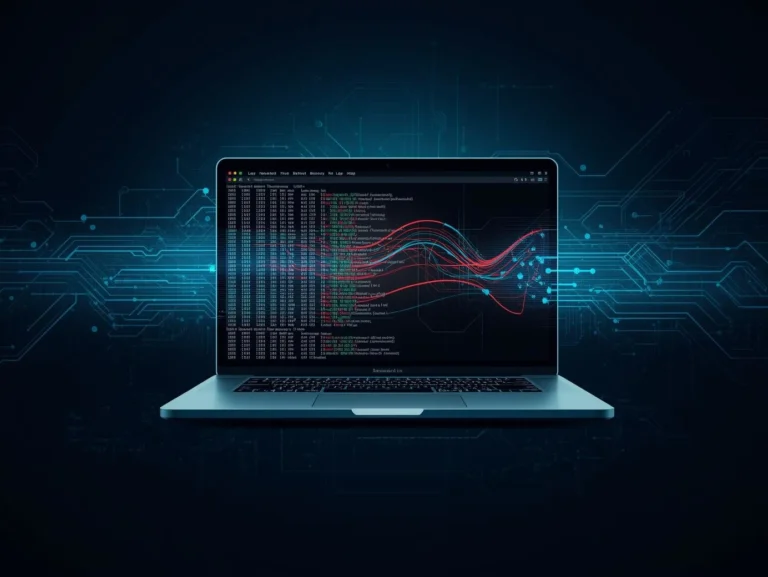
Wireshark Tutorial for Beginners to Advanced: Wireshark is a robust, free, open-source network packet analyzer utilized for capturing and interactively examining traffic on computer networks, crucial for troubleshooting and security assessment. Beginners start by capturing on Ethernet/Wi-Fi interfaces, while advanced users utilize display filters, expert information, and stream following to diagnose complex latency, packet loss, or malware issues.
Network troubleshooting and cybersecurity significantly depend on packet analysis technologies. Wireshark is one of the most potent and extensively utilized tools in this domain.
Wireshark offers profound insights into network traffic, catering to both novice learners and seasoned security analysts.
This comprehensive Wireshark lesson for 2026 will cover:
- What Wireshark is
- How packet analysis works
- How to capture and analyze packets
- Advanced filtering techniques
- Real-world troubleshooting examples
- Cybersecurity applications
Let’s start from the basics and move toward advanced concepts.
What is Wireshark?
Wireshark is an open-source network protocol analyzer used to capture and inspect network traffic in real time.
It allows users to see:
- Data packets traveling through a network
- Source and destination addresses
- Protocol details
- Communication between devices
Wireshark is commonly used by:
- Network administrators
- Cybersecurity professionals
- Ethical hackers
- IT support engineers
- Students learning networking
Why Learn Wireshark in 2026?
Wireshark is among the most prevalent tools for network investigation. You will acquire essential skills in network troubleshooting, security surveillance, and performance enhancement.
Acquiring proficiency in Wireshark can facilitate numerous options in networking and cybersecurity professions.
Benefits of Learning Wireshark
- Diagnose network issues quickly
- Monitor suspicious network activity
- Analyze application performance
- Understand network protocols
- Investigate cyber attacks
Many companies rely on Wireshark for network monitoring and forensic investigations.
How Wireshark Works?
Wireshark functions as a network packet analyzer that captures live network traffic—Ethernet, Wi-Fi, Bluetooth—and deconstructs the raw data into a human-readable format. It uses mechanisms like libpcap (on Linux/macOS) or WinPcap/Npcap (on Windows) to tap into the NIC, enabling users to examine packets, filter traffic, and evaluate protocol behavior in real-time or offline.
Wireshark operates by intercepting packets from network interfaces.
When devices interact over a network, information is segmented into small pieces referred to as packets.
Wireshark catches packets and presents them in three layers:
- Packet List Pane
- Packet Details Pane
- Packet Bytes Pane
This layered approach allows deep inspection of network communication.
Installing Wireshark
Installing Wireshark is simple.
Step 1: Download Wireshark
Visit the official website: Wireshark
Choose the version for your system:
- Windows
- macOS
- Linux
Step 2: Install the Software
Run the installer and select:
- Wireshark application
- Packet capture driver
For Windows users, the Npcap driver will also be installed.
Step 3: Launch Wireshark
Once installed, open the application.
You will see available network interfaces, such as:
- Virtual adapters
- Wi-Fi
- Ethernet
Understanding the Wireshark Interface
The Wireshark interface contains several important sections.
1. Interface List
Displays available network interfaces for capturing packets.
2. Packet List Panel
Shows all captured packets in a table format.
Columns include:
- Time
- Source
- Destination
- Protocol
- Length
- Info
3. Packet Details Panel
Displays detailed protocol breakdown of the selected packet.
4. Packet Bytes Panel
Shows raw packet data in hexadecimal format.
Capturing Your First Packet
Let’s capture network traffic step by step.
Step 1
Open Wireshark.
Step 2
Select your network interface (Wi-Fi or Ethernet).
Step 3
Click Start Capture.
Wireshark will begin recording packets immediately.
Step 4
Generate some traffic:
- Open a website
- Send an email
- Use an application
You will see packets appearing in real time.
Understanding Network Packets

Every packet contains structured information.
Typical packet structure includes:
- Frame
- Ethernet header
- IP header
- Transport protocol (TCP/UDP)
- Application protocol
Example protocols you will see:
- ICMP
- HTTP
- DNS
- TCP
- UDP
Essential Wireshark Filters
Filters help you find specific packets quickly.
Display Filter Example
Show only HTTP traffic:
http
Show only DNS traffic:
dns
Show packets from a specific IP:
ip.addr == 192.168.1.1
Show TCP packets:
tcp
Filters are essential when analyzing large captures.
Capturing Specific Traffic
You can capture targeted traffic using capture filters.
Example capture filter:
port 80
This captures only HTTP traffic.
Another example:
host 192.168.1.10
Captures packets from a specific device.
Analyzing TCP Handshake
One important concept is the TCP three-way handshake.
Steps include:
- SYN – Client initiates connection
- SYN-ACK – Server acknowledges
- ACK – Client confirms connection
Wireshark helps visualize these steps clearly.
This is useful when diagnosing connection failures.
Analyzing DNS Queries
DNS packets show how domain names are resolved.
Example process:
- Computer requests IP for domain
- DNS server responds with IP address
You can filter DNS packets using:
dns
This helps analyze slow website loading issues.
Troubleshooting Network Issues with Wireshark
Wireshark is widely used for troubleshooting.
Common issues you can detect:
Slow Network
Look for:
- Packet retransmissions
- High latency
Connection Failures
Check:
- TCP handshake errors
- Firewall blocks
DNS Problems
Analyze:
- Incorrect responses
- Failed DNS queries
Wireshark in Cybersecurity
Cybersecurity professionals use Wireshark for:
- Malware traffic detection
- Suspicious packet analysis
- Network intrusion investigation
- Data exfiltration monitoring
Wireshark can reveal:
- Hidden data transmissions
- Unknown connections
- Suspicious IP addresses
Advanced Wireshark Techniques
Once you understand the basics, you can explore advanced features.
Follow TCP Stream
This reconstructs full conversations between client and server.
Packet Reassembly
Helps rebuild fragmented packets.
Protocol Statistics
Provides detailed statistics about network traffic.
Export Objects
Allows extraction of files from captured traffic.
Common Wireshark Use Cases
Wireshark is used in many industries.
Network Engineering
Analyze bandwidth and traffic patterns.
Cybersecurity
Detect attacks and suspicious behavior.
Application Development
Debug network-based applications.
Education
Teach networking concepts.
Best Practices for Using Wireshark
To use Wireshark efficiently:
- Capture only necessary traffic
- Use filters to reduce noise
- Save capture files for analysis
- Protect sensitive data
Large captures can become difficult to analyze without filters.
Limitations of Wireshark
Despite its power, Wireshark has some limitations.
- Cannot decrypt encrypted traffic without keys
- Large captures consume memory
- Requires networking knowledge
However, it remains one of the most powerful packet analyzers available.
Learning Path to Master Wireshark
Here is a recommended learning roadmap.
Beginner Level
- Install Wireshark
- Capture packets
- Understand protocols
- Use basic filters
Intermediate Level
- Analyze TCP handshakes
- Inspect DNS packets
- Troubleshoot networks
Advanced Level
- Network forensics
- Deep packet inspection
- Malware traffic analysis
Wireshark FAQ 2026
Packet analysis · TCP troubleshooting · network security · malware detection
Wireshark is the world’s most popular network protocol analyzer. It captures packets live and presents them in human-readable format [citation:4].
Used by network admins, security analysts, and ethical hackers for:
- 🔍 Troubleshooting slow networks & latency
- 🛡️ Detecting malware & suspicious traffic
- 📊 Analysing application protocols (HTTP, DNS, TCP)
- 🔐 Investigating security incidents (C2, brute force) [citation:6]
Over 7,700 companies rely on it, from manufacturing to finance [citation:9].
1. Download from https://www.wireshark.org [citation:4]
2. Install & include Npcap (Windows) or use package manager:
sudo apt install wireshark
# macOS (Homebrew)
brew install wireshark
3. Launch and select your network interface (Wi-Fi / Ethernet).
Pro tip: On Linux, add your user to the wireshark group to capture without sudo.
- Open Wireshark.
- Double‑click your interface (Wi‑Fi or Ethernet).
- Watch packets scroll by – press the red square to stop.
- Generate traffic: open a website, ping a server.
You’ll see protocols like TCP, UDP, HTTP, DNS in the packet list.
http| Filter | What it shows |
ip.addr == 192.168.1.10 | Traffic to/from an IP |
tcp.port == 80 | HTTP packets only |
dns | DNS queries/responses |
http.request | HTTP GET/POST requests |
tcp.flags.syn == 1 | TCP SYN packets (handshake) |
!_ws.col.info contains "retransmission" | Hide retransmissions |
💡 Right‑click a packet → “Apply as Filter” to build filters visually.
Filter for tcp.flags.syn == 1 to see the 3‑way handshake:
- 1. SYN – client → server
- 2. SYN‑ACK – server → client
- 3. ACK – client → server
Common TCP errors (expert info) [citation:2]:
| Message | Meaning |
| TCP Previous segment not captured | Missing packet – possible loss or capture miss [citation:2] |
| TCP ACKed unseen segment | Acknowledgment for packet not seen [citation:2] |
| TCP Out‑of‑Order | Packets arrived in wrong order [citation:2] |
| TCP Retransmission | Packet was resent (timeout) [citation:2] |
| TCP Fast Retransmission | Resent after duplicate ACKs [citation:2] |
| TCP ZeroWindow | Receiver buffer full – flow control [citation:2] |
Use Statistics → Flow Graph to visualise the handshake.
Look for these indicators [citation:5][citation:2]:
- High Delta Time – gaps between packets signal delay.
- TCP Retransmissions – packet loss causing slowdown.
- TCP Window Full – sender stalled, receiver overwhelmed.
- ZeroWindow – receiver can’t accept more data.
- Duplicate ACKs – may trigger fast retransmission.
Enable Statistics → TCP Stream Graph → Time‑Sequence to visualise throughput.
⚡ Filter: tcp.analysis.flags shows all packets with expert info.
Yes. Wireshark is widely used for network forensics [citation:3][citation:6]. Signs of compromise:
- Beaconing – periodic traffic to unusual IPs (C2 server).
- DNS exfiltration – long subdomains, TXT queries.
- SSH brute force – many failed connections on port 22 [citation:6].
- Metasploit payloads – strange TCP patterns, reverse shells [citation:6].
Filter for suspicious destinations: ip.dst == 185.xxx.xxx.xxx.
Follow TCP Stream to reassemble the conversation – sometimes reveals plaintext commands.
🔒 Combine with ML‑based IDPS for real‑time blocking [citation:3].
- Right‑click any packet in the conversation.
- Select Follow → TCP Stream.
- Wireshark displays the full data exchange (ASCII/hex).
Useful to see HTTP requests, SMTP commands, or file transfers.
You can also filter automatically: tcp.stream eq 5.
tcp.stream eq 12
| Capture filter | Display filter | |
| When? | Before capture | After capture |
| Syntax | BPF (e.g. port 80) | Wireshark (e.g. tcp.port == 80) |
| Effect | Drops unwanted packets – reduces file size | Hides packets – still in file |
Example capture filter (only HTTP): tcp port 80
Example display filter: http.request
💡 Use capture filters on busy networks to avoid huge files.
Yes, with the private key or session keys.
Method 1 – using server private key (not recommended for production):
Edit → Preferences → Protocols → TLS → add RSA key.
Method 2 – using browser‑logged session keys (easier):
- Set environment variable
SSLKEYLOGFILEto a file path. - Restart browser – it writes keys to that file.
- In Wireshark: Edit → Preferences → Protocols → TLS → set (Pre)-Master-Secret log filename.
Now you can inspect encrypted HTTP/2, QUIC, etc.
TShark is the terminal version of Wireshark [citation:7].
tshark -c 100 -w capture.pcap
# Read a pcap and show HTTP hosts
tshark -r capture.pcap -Y http.host
# Live capture with filter
tshark -i eth0 -f “tcp port 443”
Perfect for servers without GUI or automation.
| Wireshark | GUI, deep analysis, graphs, colouring – best for interactive work |
| tcpdump | CLI, lightweight, no GUI – ideal for remote servers [citation:2] |
Many experts use tcpdump to capture (low overhead) and later open the file in Wireshark to analyse.
tcpdump -i eth0 -s 0 -w server.pcap
# Transfer file and open in Wireshark
Wireshark offers powerful built‑in graphs [citation:7]:
- Statistics → IO Graph – throughput over time.
- Statistics → TCP Stream Graph → Time‑Sequence – visualises TCP sequence numbers, retransmissions.
- Statistics → Flow Graph – connection overview.
The Time‑Sequence graph is excellent to spot packet loss, window stalling, and slow start [citation:1].
Absolutely. Wireshark skills are required for many roles [citation:4][citation:7]:
- Network Security Analyst
- Penetration Tester (ethical hacker)
- Incident Responder / Forensics
- Network Engineer / Architect
Certifications like Wireshark Certified Network Analyst (WCNA) exist [citation:10].
Pluralsight and SANS offer dedicated Wireshark courses [citation:7][citation:10].
In 2026, companies across manufacturing, finance, and tech seek packet analysis pros [citation:9].
Wireshark highlights packets based on rules – great for spotting anomalies [citation:1].
View → Coloring Rules – you can customise:
- ▸ Light red – TCP retransmission
- ▸ Orange – TCP out‑of‑order
- ▸ Blue – DNS
- ▸ Green – HTTP traffic
Create temporary rules by right‑clicking a packet → Colorize Conversation.
Conclusion
Wireshark is a crucial instrument for professionals in networking or cybersecurity.
Wireshark facilitates the identification of network activities, ranging from fundamental packet capturing to sophisticated network forensics.
By mastering Wireshark in 2026, you can build valuable skills in:
- Network troubleshooting
- Cybersecurity analysis
- Packet-level debugging
Commence exercising with authentic network traffic and progressively investigate advanced functionalities to attain expertise.
For related please visit here:
1 thought on “Wireshark Tutorial for Beginners to Advanced (2026) – Complete Guide to Network Packet Analysis”