
Installing Kali Linux is only the beginning of your cybersecurity journey. Whether you’re an ethical hacker, penetration tester, cybersecurity student, or Linux enthusiast, your system isn’t fully ready immediately after installation.
Before you start using Kali Linux for penetration testing, vulnerability assessment, or learning cybersecurity, there are a few important configurations you should complete. These steps improve security, ensure your tools work correctly, keep your system updated, and provide a smoother overall experience.
In this guide, we’ll walk through the first five things you should configure right after installing Kali Linux.
Right after installing Kali Linux, the 5 most critical things to configure are updating the system, creating a non-root user account, changing default credentials, enabling your firewall, and regenerating SSH host keys. These steps ensure your security auditing environment is secure, stable, and ready for use.
Why Configure Kali Linux After Installation?
A fresh Kali Linux installation is functional, but not optimized.
Without proper configuration, you may experience:
- Outdated software
- Missing drivers
- Poor system performance
- Limited functionality
- Security vulnerabilities
Spending just a few minutes configuring your system can save hours of troubleshooting later.
Also Read:
- How to Build a Secure Cyber Lab on Windows 11 Using VMware (2026)
- Best VPN for the World (2026) – Top Secure & Fast VPN Services Reviewed
- Ethical Hacker Salary 2026: Salary, Skills, Certifications & Career Roadmap
1. Update and Upgrade Your System
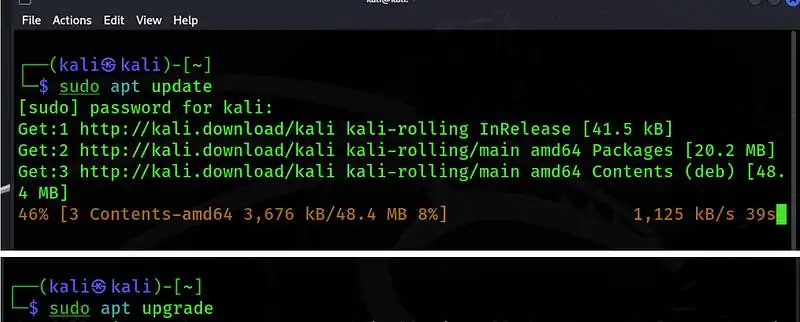
The very first thing you should do is update your package list and install the latest software updates.
Open Terminal and run:
sudo apt updatesudo apt full-upgrade -ysudo apt autoremove -yWhy This Matters
- Installs latest security patches
- Updates penetration testing tools
- Fixes known bugs
- Improves compatibility
- Enhances overall stability
Keeping Kali Linux updated is one of the most important cybersecurity practices.
2. Verify and Configure Network Connectivity
Many Kali tools require internet access.
Check your connection:
ip aor
ping google.comIf Wi-Fi isn’t working:
- Update your drivers
- Check firmware packages
- Restart Network Manager
Restart networking:
sudosystemctlrestartNetworkManager
Why This Matters
Without a stable network connection:
- Package installation fails
- Tool updates won’t work
Online repositories become inaccessible
3. Enable Additional Repositories and Install Essential Tools
Many useful utilities are not installed by default.
Install common packages:
sudoapt installgitcurlwgetnet-tools htopvim-y
Recommended tools:
- Git
- Curl
- Wget
- HTOP
- Vim
- Tree
- Build-essential
Example:
sudo apt install tree build-essential -yThese utilities make everyday Linux administration much easier.
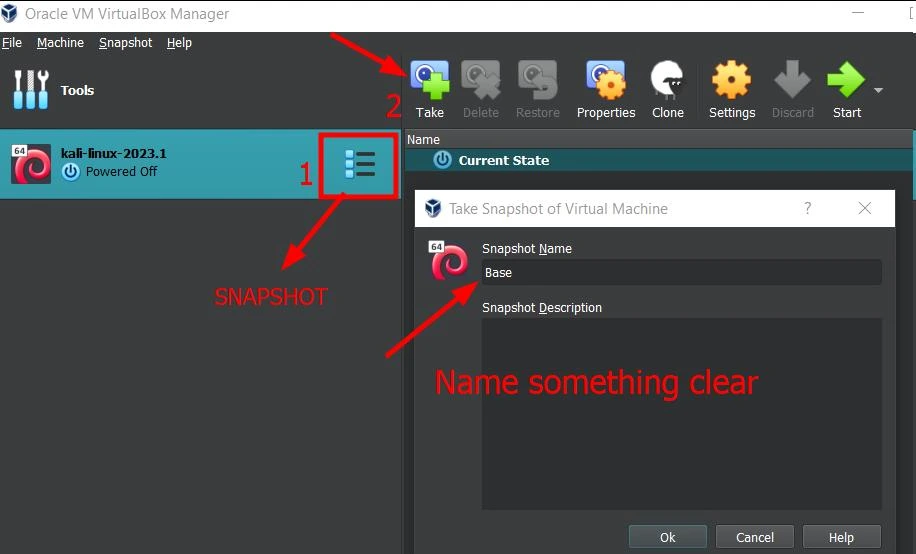
4. Create Snapshots or Backups
Before experimenting with penetration testing tools or system modifications, create a backup.
If using VirtualBox or VMware:
- Create a Snapshot
If installed on physical hardware:
Use:
- Timeshift
- Clonezilla
- rsync
Benefits include:
- Easy recovery
- Protection from accidental mistakes
- Safe testing environment
Cybersecurity often involves testing unstable software, making backups essential.
5. Configure Your Terminal and User Environment
You’ll spend most of your time inside the terminal.
Customize it to improve productivity.
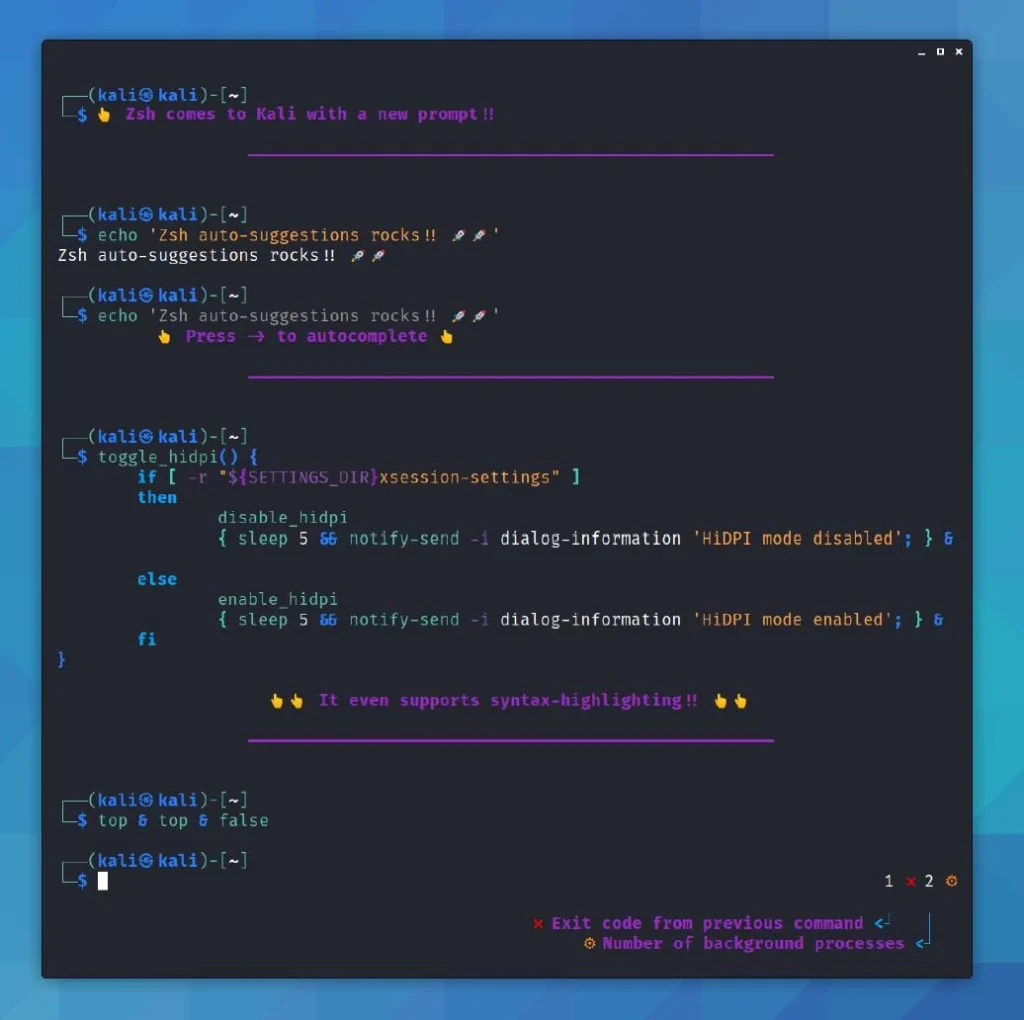
Install ZSH if necessary:
sudo apt install zsh-yInstall useful tools:
sudo apt install tmux neofetch bat -yCustomize:
- Terminal colors
- Aliases
- Prompt
- History
- Fonts
Example aliases:
alias alias These small improvements save significant time over months of daily use.
Bonus Tips
After completing the first five configurations, consider these additional improvements:
Enable Firewall
Install UFW:
sudo apt install ufwEnable it:
sudo ufw enableInstall VirtualBox Guest Additions
If running inside VirtualBox, Guest Additions provide:
- Clipboard sharing
- Better display resolution
- Shared folders
Improved performance
Configure SSH
Install SSH server:
sudo apt install openssh-serverEnable it:
sudo systemctl enable sshsudo systemctl startsshInstall Your Favorite Browser
Many professionals install:
- Firefox
- Brave
- Chromium
Depending on workflow preferences.
Organize Your Workspace
Create folders such as:
~/Projects~/Scripts~/Wordlists~/Labs~/ReportsOrganization makes long-term learning much easier.
Common Mistakes Beginners Make
Avoid these common errors:
- Ignoring system updates
- Running unnecessary commands as root
- Installing random scripts from the internet
- Forgetting backups
- Using Kali as a daily desktop operating system
Not learning Linux fundamentals first.
Best Practices
To keep your Kali Linux system secure and efficient:
- Update weekly
- Use strong passwords
- Backup regularly
- Install software only from trusted repositories
- Practice in virtual machines whenever possible
- Learn command-line basics before advanced penetration testing
<!DOCTYPE html>
<html lang="en">
<head>
  <meta charset="UTF-8">
  <meta name="viewport" content="width=device-width, initial-scale=1.0, maximum-scale=1.0, user-scalable=yes">
  <title>Kali Linux Configuration FAQ | Cyber Lab</title>
  <!-- Font Awesome 6 for icons -->
  <link rel="stylesheet" href="https://cdnjs.cloudflare.com/ajax/libs/font-awesome/6.0.0-beta3/css/all.min.css">
  <style>
    /* Import cyber-style font */
    @import url('https://fonts.googleapis.com/css2?family=Share+Tech+Mono&family=Inter:wght@400;500;600;700&display=swap');

    /* Reset & Base for container */
    .cyber-faq-container {
      max-width: 900px;
      margin: 2.5rem auto;
      font-family: 'Inter', system-ui, -apple-system, 'Segoe UI', Roboto, sans-serif;
      color: #e2e8f0;
      background: transparent;
      padding: 0 1.2rem;
      box-sizing: border-box;
      position: relative;
      z-index: 2;
    }

    .cyber-faq-container *,
    .cyber-faq-container *::before,
    .cyber-faq-container *::after {
      box-sizing: border-box;
      margin: 0;
      padding: 0;
    }

    /* Digital grid background (subtle cyber pattern) */
    .cyber-faq-container::before {
      content: "";
      position: fixed;
      top: 0;
      left: 0;
      width: 100%;
      height: 100%;
      background-image:
        linear-gradient(rgba(0, 255, 255, 0.03) 1px, transparent 1px),
        linear-gradient(90deg, rgba(0, 255, 255, 0.03) 1px, transparent 1px);
      background-size: 40px 40px;
      pointer-events: none;
      z-index: 0;
      opacity: 0.5;
    }

    /* Title with glitch & neon effect */
    .faq-main-title {
      font-family: 'Share Tech Mono', monospace;
      font-size: 2.5rem;
      font-weight: 400;
      letter-spacing: 2px;
      margin-bottom: 2.5rem;
      color: #00f7ff;
      text-shadow: 0 0 12px #00f7ff80, 0 0 30px #00f7ff40;
      border-left: 6px solid #ff0055;
      padding-left: 1.8rem;
      line-height: 1.2;
      background: linear-gradient(90deg, #0a0f1e 0%, transparent 90%);
      position: relative;
      display: inline-block;
      width: auto;
      animation: glitch-skew 4s infinite linear alternate-reverse;
      text-transform: uppercase;
    }

    .faq-main-title::after {
      content: "KALI LINUX CONFIGURATION · FAQ";
      position: absolute;
      top: 0;
      left: 0;
      width: 100%;
      height: 100%;
      color: #ff0055;
      text-shadow: 0 0 12px #ff0055cc;
      z-index: -1;
      animation: glitch-one 2s infinite;
      clip-path: inset(0 0 70% 0);
    }

    @keyframes glitch-one {
      0%,
      100% {
        transform: translate(0);
      }
      20% {
        transform: translate(-3px, 2px);
      }
      40% {
        transform: translate(3px, -2px);
      }
      60% {
        transform: translate(-2px, -1px);
      }
      80% {
        transform: translate(2px, 1px);
      }
    }

    @keyframes glitch-skew {
      0% {
        transform: skew(0deg);
      }
      20% {
        transform: skew(0.5deg);
      }
      40% {
        transform: skew(-0.3deg);
      }
      60% {
        transform: skew(0.2deg);
      }
      80% {
        transform: skew(-0.1deg);
      }
      100% {
        transform: skew(0deg);
      }
    }

    /* Subtitle / intro text */
    .faq-intro {
      font-size: 1.05rem;
      color: #94a3b8;
      margin-bottom: 2rem;
      line-height: 1.7;
      border-left: 3px solid #00f7ff44;
      padding-left: 1.2rem;
      font-style: italic;
      text-shadow: 0 0 8px rgba(0, 247, 255, 0.1);
    }

    .faq-intro strong {
      color: #00f7ff;
      font-style: normal;
    }

    /* FAQ List */
    .faq-list {
      display: flex;
      flex-direction: column;
      gap: 1.2rem;
      list-style: none;
      position: relative;
    }

    /* Each item - dark glass card with neon border */
    .faq-item {
      background: rgba(10, 15, 30, 0.75);
      backdrop-filter: blur(12px);
      border-radius: 18px;
      border: 1px solid rgba(0, 247, 255, 0.25);
      box-shadow: 0 8px 20px rgba(0, 0, 0, 0.5), 0 0 15px rgba(0, 247, 255, 0.15);
      transition: all 0.3s cubic-bezier(0.23, 1, 0.32, 1);
      overflow: hidden;
      position: relative;
    }

    /* Animated scanning line on card */
    .faq-item::before {
      content: "";
      position: absolute;
      top: 0;
      left: -100%;
      width: 100%;
      height: 2px;
      background: linear-gradient(90deg, transparent, #00f7ff, #ff0055, transparent);
      z-index: 3;
      opacity: 0;
      transition: opacity 0.2s;
    }

    .faq-item:hover::before {
      animation: scan-line 2s linear infinite;
      opacity: 1;
    }

    @keyframes scan-line {
      0% {
        left: -100%;
      }
      100% {
        left: 100%;
      }
    }

    .faq-item:hover {
      border-color: #ff0055;
      box-shadow: 0 0 30px rgba(255, 0, 85, 0.4), 0 10px 25px rgba(0, 0, 0, 0.7);
      transform: translateY(-2px);
      background: rgba(15, 20, 40, 0.8);
    }

    .faq-item.active {
      border-color: #00f7ff;
      box-shadow: 0 0 35px rgba(0, 247, 255, 0.5), 0 10px 30px rgba(0, 0, 0, 0.8);
    }

    /* Question row */
    .faq-question {
      display: flex;
      align-items: center;
      justify-content: space-between;
      padding: 1.5rem 1.8rem;
      cursor: pointer;
      user-select: none;
      background: transparent;
      transition: background 0.2s;
      gap: 1rem;
      position: relative;
      z-index: 2;
    }

    .faq-question:hover {
      background: rgba(0, 247, 255, 0.05);
    }

    .question-text {
      font-weight: 600;
      font-size: 1.15rem;
      line-height: 1.4;
      color: #f0f4ff;
      flex: 1;
      letter-spacing: 0.2px;
      text-shadow: 0 0 5px rgba(0, 247, 255, 0.3);
    }

    /* Icon (plus) - cyberpunk style */
    .faq-icon {
      display: flex;
      align-items: center;
      justify-content: center;
      width: 44px;
      height: 44px;
      background: rgba(0, 247, 255, 0.08);
      border: 1px solid #00f7ff;
      border-radius: 50%;
      transition: all 0.4s cubic-bezier(0.175, 0.885, 0.32, 1.275);
      color: #00f7ff;
      font-size: 1.3rem;
      flex-shrink: 0;
      box-shadow: 0 0 15px rgba(0, 247, 255, 0.3);
      position: relative;
      z-index: 5;
    }

    .faq-icon i {
      transition: transform 0.3s;
      filter: drop-shadow(0 0 5px #00f7ff);
    }

    /* Icon hover effect */
    .faq-icon:hover {
      background: #ff0055;
      border-color: #ff0055;
      color: white;
      transform: scale(1.15) rotate(90deg);
      box-shadow: 0 0 30px #ff0055cc;
    }

    /* Active state icon */
    .faq-item.active .faq-icon {
      background: #00f7ff;
      border-color: #00f7ff;
      color: #0a0f1e;
      transform: rotate(45deg);
      box-shadow: 0 0 35px #00f7ff;
    }

    .faq-item.active .faq-icon:hover {
      background: #ff0055;
      border-color: #ff0055;
      color: white;
      transform: rotate(45deg) scale(1.1);
    }

    /* Answer panel */
    .faq-answer {
      max-height: 0;
      overflow: hidden;
      transition: max-height 0.55s cubic-bezier(0.25, 0.46, 0.45, 0.94), padding 0.2s;
      background: rgba(0, 0, 0, 0.35);
      border-top: 1px solid transparent;
      color: #cbd5e1;
      font-size: 1rem;
      line-height: 1.7;
      padding: 0 1.8rem;
      backdrop-filter: blur(4px);
    }

    .faq-item.active .faq-answer {
      max-height: 800px;
      border-top-color: rgba(0, 247, 255, 0.4);
      padding: 1.4rem 1.8rem 1.8rem;
      box-shadow: inset 0 0 20px rgba(0, 247, 255, 0.05);
    }

    /* Answer content animation */
    .answer-content {
      opacity: 0;
      transform: translateY(8px);
      transition: opacity 0.35s ease 0.15s, transform 0.35s ease 0.15s;
      word-wrap: break-word;
    }

    .faq-item.active .answer-content {
      opacity: 1;
      transform: translateY(0);
    }

    /* Typography inside answers */
    .answer-content strong {
      color: #00f7ff;
      font-weight: 600;
      text-shadow: 0 0 6px #00f7ff60;
    }

    .answer-content code {
      background: rgba(0, 247, 255, 0.1);
      color: #00f7ff;
      padding: 0.15rem 0.5rem;
      border-radius: 4px;
      font-family: 'Share Tech Mono', monospace;
      font-size: 0.9rem;
      letter-spacing: 0.5px;
      border: 1px solid rgba(0, 247, 255, 0.2);
      display: inline-block;
      margin: 0.15rem 0;
    }

    .answer-content ul {
      margin-top: 0.8rem;
      padding-left: 1.6rem;
      list-style-type: none;
    }

    .answer-content li {
      margin-bottom: 0.5rem;
      position: relative;
      padding-left: 1.3rem;
    }

    .answer-content li::before {
      content: "›";
      position: absolute;
      left: 0;
      color: #ff0055;
      font-weight: bold;
      font-size: 1.2rem;
    }

    .answer-content p {
      margin-bottom: 0.8rem;
    }

    /* Numbered list styling */
    .answer-content ol {
      margin-top: 0.8rem;
      padding-left: 1.8rem;
      list-style-type: decimal;
    }

    .answer-content ol li {
      padding-left: 0.3rem;
      margin-bottom: 0.6rem;
      color: #e2e8f0;
    }

    .answer-content ol li::before {
      content: none;
    }

    /* Hover preview class styling (used by JS) */
    .faq-item.hover-preview .faq-answer {
      max-height: 800px;
      border-top-color: rgba(255, 0, 85, 0.5);
      padding: 1.4rem 1.8rem 1.8rem;
    }

    .faq-item.hover-preview .answer-content {
      opacity: 1;
      transform: translateY(0);
    }

    .faq-item.hover-preview .faq-icon {
      background: #ff0055;
      border-color: #ff0055;
      color: white;
      transform: scale(1.12) rotate(90deg);
      box-shadow: 0 0 30px #ff0055cc;
    }

    .faq-item.active.hover-preview .faq-icon {
      background: #ff0055;
      border-color: #ff0055;
      transform: rotate(45deg) scale(1.1);
    }

    /* Responsive */
    @media (max-width: 600px) {
      .faq-main-title {
        font-size: 1.7rem;
        letter-spacing: 1px;
      }
      .faq-question {
        padding: 1.2rem 1.2rem;
      }
      .question-text {
        font-size: 1rem;
      }
    }

    /* Decorative floating particles */
    .cyber-faq-container .particle {
      position: fixed;
      width: 3px;
      height: 3px;
      background: #00f7ff;
      border-radius: 50%;
      box-shadow: 0 0 10px #00f7ff;
      z-index: 0;
      pointer-events: none;
      animation: floatUp 8s infinite;
      opacity: 0.3;
    }

    @keyframes floatUp {
      0% {
        transform: translateY(100vh) scale(0);
        opacity: 0;
      }
      10% {
        opacity: 0.6;
      }
      90% {
        opacity: 0.6;
      }
      100% {
        transform: translateY(-10vh) scale(1.2);
        opacity: 0;
      }
    }

    /* Horizontal rule / divider */
    .faq-divider {
      border: none;
      height: 1px;
      background: linear-gradient(90deg, transparent, #00f7ff44, #ff005544, transparent);
      margin: 2rem 0 1.5rem;
    }
  </style>
</head>
<body>
  <!-- Kali Linux Configuration FAQ Container -->
  <div class="cyber-faq-container" id="cyberFaqContainer">
    <h2 class="faq-main-title">⚡ KALI LINUX CONFIGURATION · FAQ</h2>

    <p class="faq-intro">
      Installing Kali Linux is only the beginning of your cybersecurity journey. Before you start using Kali Linux for
      <strong>penetration testing</strong>, <strong>vulnerability assessment</strong>, or <strong>learning cybersecurity</strong>,
      there are a few important configurations you should complete. These steps improve security, ensure your tools work
      correctly, keep your system updated, and provide a smoother overall experience.
    </p>

    <ul class="faq-list" id="faqList">
      <!-- JavaScript will populate items -->
    </ul>

    <hr class="faq-divider">

    <p style="color: #64748b; font-size: 0.9rem; text-align: center; letter-spacing: 0.5px;">
      ⚡ A properly configured Kali Linux system is faster, safer, and far more enjoyable to use ⚡
    </p>

    <!-- Floating particles for extra cyber feel (generated by JS) -->
  </div>

  <script>
    (function () {
      // ---- FAQ Data: Kali Linux Configuration ----
      const faqData = [
        {
          question: "Why should I configure Kali Linux after installation?",
          answer: "A fresh Kali Linux installation is functional, but not optimized. Without proper configuration, you may experience outdated software, missing drivers, poor system performance, limited functionality, and security vulnerabilities. Spending just a few minutes configuring your system can save hours of troubleshooting later."
        },
        {
          question: "What are the 5 most critical things to configure right after installing Kali Linux?",
          answer: "<ol><li><strong>Updating the system</strong> – ensures latest security patches and tool updates</li><li><strong>Creating a non-root user account</strong> – improves security posture</li><li><strong>Changing default credentials</strong> – prevents unauthorized access</li><li><strong>Enabling your firewall</strong> – adds essential network protection</li><li><strong>Regenerating SSH host keys</strong> – ensures secure remote connections</li></ol>These steps ensure your security auditing environment is secure, stable, and ready for use."
        },
        {
          question: "What is the very first thing I should do after installing Kali Linux?",
          answer: "The very first thing you should do is update your package list and install the latest software updates. Open Terminal and run:<br><br><code>sudo apt update</code><br><code>sudo apt full-upgrade -y</code><br><code>sudo apt autoremove -y</code><br><br>This installs the latest security patches, updates penetration testing tools, fixes known bugs, improves compatibility, and enhances overall stability. Keeping Kali Linux updated is one of the most important cybersecurity practices."
        },
        {
          question: "How do I verify and configure network connectivity in Kali Linux?",
          answer: "Many Kali tools require internet access. Check your connection using:<br><br><code>ip a</code><br>or<br><code>ping google.com</code><br><br>If Wi-Fi isn't working, update your drivers, check firmware packages, or restart Network Manager using:<br><br><code>sudo systemctl restart NetworkManager</code><br><br>Without a stable network connection, package installation fails, tool updates won't work, and online repositories become inaccessible."
        },
        {
          question: "What additional repositories and essential tools should I enable after installation?",
          answer: "Many useful utilities are not installed by default. Install common packages using:<br><br><code>sudo apt install git curl wget net-tools htop vim -y</code><br><br>Recommended tools include:<br><ul><li><strong>Git</strong> – version control</li><li><strong>Curl & Wget</strong> – file transfers</li><li><strong>HTOP</strong> – system monitoring</li><li><strong>Vim</strong> – text editor</li><li><strong>Tree</strong> – directory visualization</li><li><strong>Build-essential</strong> – compilation tools</li></ul>Example:<br><br><code>sudo apt install tree build-essential -y</code><br><br>These utilities make everyday Linux administration much easier."
        },
        {
          question: "How do I create snapshots or backups of my Kali Linux system?",
          answer: "Before experimenting with penetration testing tools or system modifications, create a backup. If using VirtualBox or VMware, create a <strong>Snapshot</strong>. If installed on physical hardware, use tools like <strong>Timeshift</strong>, <strong>Clonezilla</strong>, or <strong>rsync</strong>.<br><br>Benefits include:<br><ul><li>Easy recovery from mistakes</li><li>Protection from accidental system damage</li><li>Safe testing environment for unstable software</li></ul>Cybersecurity often involves testing unstable software, making backups essential."
        },
        {
          question: "How should I configure my terminal and user environment in Kali Linux?",
          answer: "You'll spend most of your time inside the terminal, so customize it to improve productivity. Install ZSH if necessary:<br><br><code>sudo apt install zsh -y</code><br><br>Install useful tools:<br><br><code>sudo apt install tmux neofetch bat -y</code><br><br>Customize terminal colors, aliases, prompt, history, and fonts. Example aliases:<br><br><code>alias ll='ls -la'</code><br><code>alias update='sudo apt update && sudo apt full-upgrade -y'</code><br><br>These small improvements save significant time over months of daily use."
        },
        {
          question: "Should I enable a firewall on Kali Linux?",
          answer: "Yes. Install UFW (Uncomplicated Firewall) using:<br><br><code>sudo apt install ufw</code><br><br>Enable it with:<br><br><code>sudo ufw enable</code><br><br>A firewall adds an essential layer of security to your penetration testing environment and protects against unauthorized network access."
        },
        {
          question: "How do I install VirtualBox Guest Additions on Kali Linux?",
          answer: "If running Kali Linux inside VirtualBox, Guest Additions provide:<br><ul><li>Clipboard sharing between host and guest</li><li>Better display resolution</li><li>Shared folders</li><li>Improved overall performance</li></ul>Install them from the VirtualBox menu: <strong>Devices > Insert Guest Additions CD image</strong>, then follow the prompts to complete installation."
        },
        {
          question: "How do I configure SSH on Kali Linux?",
          answer: "Install the SSH server using:<br><br><code>sudo apt install openssh-server</code><br><br>Enable and start it with:<br><br><code>sudo systemctl enable ssh</code><br><code>sudo systemctl start ssh</code><br><br>This allows secure remote access to your Kali Linux machine when needed for remote penetration testing or administration."
        },
        {
          question: "What are common mistakes beginners make after installing Kali Linux?",
          answer: "Common mistakes include:<br><ul><li>Ignoring system updates</li><li>Running unnecessary commands as root</li><li>Installing random scripts from the internet</li><li>Forgetting to create backups</li><li>Using Kali as a daily desktop operating system</li><li>Not learning Linux fundamentals first</li></ul>Avoid these to maintain a secure and stable penetration testing environment."
        },
        {
          question: "What are the best practices for keeping Kali Linux secure and efficient?",
          answer: "Best practices include:<br><ul><li><strong>Update weekly</strong> – keeps tools and system current</li><li><strong>Use strong passwords</strong> – prevents unauthorized access</li><li><strong>Backup regularly</strong> – protects against data loss</li><li><strong>Install software only from trusted repositories</strong> – avoids malware</li><li><strong>Practice in virtual machines whenever possible</strong> – isolates risky activities</li><li><strong>Learn command-line basics</strong> – before advanced penetration testing</li></ul>"
        },
        {
          question: "Is Kali Linux suitable as a daily desktop operating system?",
          answer: "No. Kali Linux is designed specifically for <strong>penetration testing</strong> and <strong>security auditing</strong>. It is not recommended as a daily desktop OS. Use it in a virtual machine or dedicated testing environment, and keep a separate operating system for everyday tasks like browsing, email, and document editing."
        },
        {
          question: "How should I organize my workspace in Kali Linux?",
          answer: "Create dedicated folders for better organization:<br><br><code>~/Projects</code> – active penetration testing projects<br><code>~/Scripts</code> – custom automation scripts<br><code>~/Wordlists</code> – password and dictionary files<br><code>~/Labs</code> – practice environments and challenges<br><code>~/Reports</code> – findings and documentation<br><br>Organization makes long-term learning much easier and helps you maintain a professional workflow for cybersecurity research."
        }
      ];

      const faqList = document.getElementById('faqList');
      const container = document.getElementById('cyberFaqContainer');

      // Build FAQ items dynamically
      function buildFaq() {
        if (!faqList) return;
        faqList.innerHTML = '';
        faqData.forEach((item, idx) => {
          const li = document.createElement('li');
          li.className = 'faq-item';
          li.dataset.index = idx;

          li.innerHTML = `
            <div class="faq-question">
              <span class="question-text">${item.question}</span>
              <span class="faq-icon"><i class="fas fa-plus"></i></span>
            </div>
            <div class="faq-answer">
              <div class="answer-content">${item.answer}</div>
            </div>
          `;
          faqList.appendChild(li);
        });
      }

      buildFaq();

      // ---- Interactive Logic: Click + Hover on icon ----
      function attachEvents() {
        if (!faqList) return;

        // Click to toggle active class
        faqList.addEventListener('click', (e) => {
          const questionEl = e.target.closest('.faq-question');
          if (!questionEl) return;
          const faqItem = questionEl.closest('.faq-item');
          if (!faqItem) return;

          // Toggle active (remove hover-preview if present)
          faqItem.classList.remove('hover-preview');
          faqItem.classList.toggle('active');

          // Update icon rotation handled by CSS
        });

        // Hover on icon: show preview (add hover-preview class)
        faqList.addEventListener('mouseenter', (e) => {
          const icon = e.target.closest('.faq-icon');
          if (!icon) return;
          const faqItem = icon.closest('.faq-item');
          if (!faqItem) return;

          if (!faqItem.classList.contains('active')) {
            faqItem.classList.add('hover-preview');
          }
        }, true);

        faqList.addEventListener('mouseleave', (e) => {
          const icon = e.target.closest('.faq-icon');
          if (!icon) return;
          const faqItem = icon.closest('.faq-item');
          if (!faqItem) return;

          if (faqItem.classList.contains('hover-preview') && !faqItem.classList.contains('active')) {
            faqItem.classList.remove('hover-preview');
          }
        }, true);

        // Safety: remove hover-preview when mouse leaves entire item
        faqList.addEventListener('mouseleave', (e) => {
          const faqItem = e.target.closest('.faq-item');
          if (!faqItem) return;
          if (!faqItem.contains(e.relatedTarget)) {
            if (faqItem.classList.contains('hover-preview') && !faqItem.classList.contains('active')) {
              faqItem.classList.remove('hover-preview');
            }
          }
        });
      }

      // Create floating cyber particles
      function createParticles() {
        if (!container) return;
        const particleContainer = document.createElement('div');
        particleContainer.style.position = 'fixed';
        particleContainer.style.top = '0';
        particleContainer.style.left = '0';
        particleContainer.style.width = '100%';
        particleContainer.style.height = '100%';
        particleContainer.style.pointerEvents = 'none';
        particleContainer.style.zIndex = '0';
        container.appendChild(particleContainer);

        for (let i = 0; i < 20; i++) {
          const particle = document.createElement('div');
          particle.className = 'particle';
          particle.style.left = Math.random() * 100 + '%';
          particle.style.animationDelay = Math.random() * 10 + 's';
          particle.style.animationDuration = 6 + Math.random() * 10 + 's';
          particle.style.width = (2 + Math.random() * 4) + 'px';
          particle.style.height = particle.style.width;
          if (Math.random() > 0.6) {
            particle.style.background = '#ff0055';
            particle.style.boxShadow = '0 0 10px #ff0055';
          }
          particleContainer.appendChild(particle);
        }
      }

      // Initialize
      if (document.readyState === 'loading') {
        document.addEventListener('DOMContentLoaded', () => {
          attachEvents();
          createParticles();
        });
      } else {
        attachEvents();
        createParticles();
      }
    })();
  </script>
</body>
</html>
Final Thoughts
A properly configured Kali Linux system is faster, safer, and far more enjoyable to use. While installing Kali Linux takes only a few minutes, taking the time to configure your environment correctly can save countless hours of troubleshooting in the future.
Start by updating your system, ensuring your network works correctly, installing essential utilities, creating backups, and customizing your terminal. Once these fundamentals are in place, you’ll have a solid foundation for learning ethical hacking, penetration testing, malware analysis, and cybersecurity research.
Whether you’re just beginning your cybersecurity journey or preparing for professional certifications, these first five configurations are steps you’ll perform on nearly every fresh Kali Linux installation.