Introduction to Linux File Permissions and Access Control
Introduction to Linux File Permissions
Understanding Linux file permissions is an essential step for system administrators, DevOps engineers, and security analysts. Linux is a multi-user operating system designed to run multiple services and user sessions simultaneously. To maintain stability and privacy, the system relies on a granular authorization framework to control resource access.
Configuring proper Linux file permissions ensures that authorized accounts can view or edit files while restricting unauthorized access. For broader cybersecurity fundamentals, explore our guide on cyber security best practices and review official documentation provided by the GNU Coreutils Documentation and Ubuntu Community Help Wiki.

1. Understanding Linux File Permissions and Ownership Levels
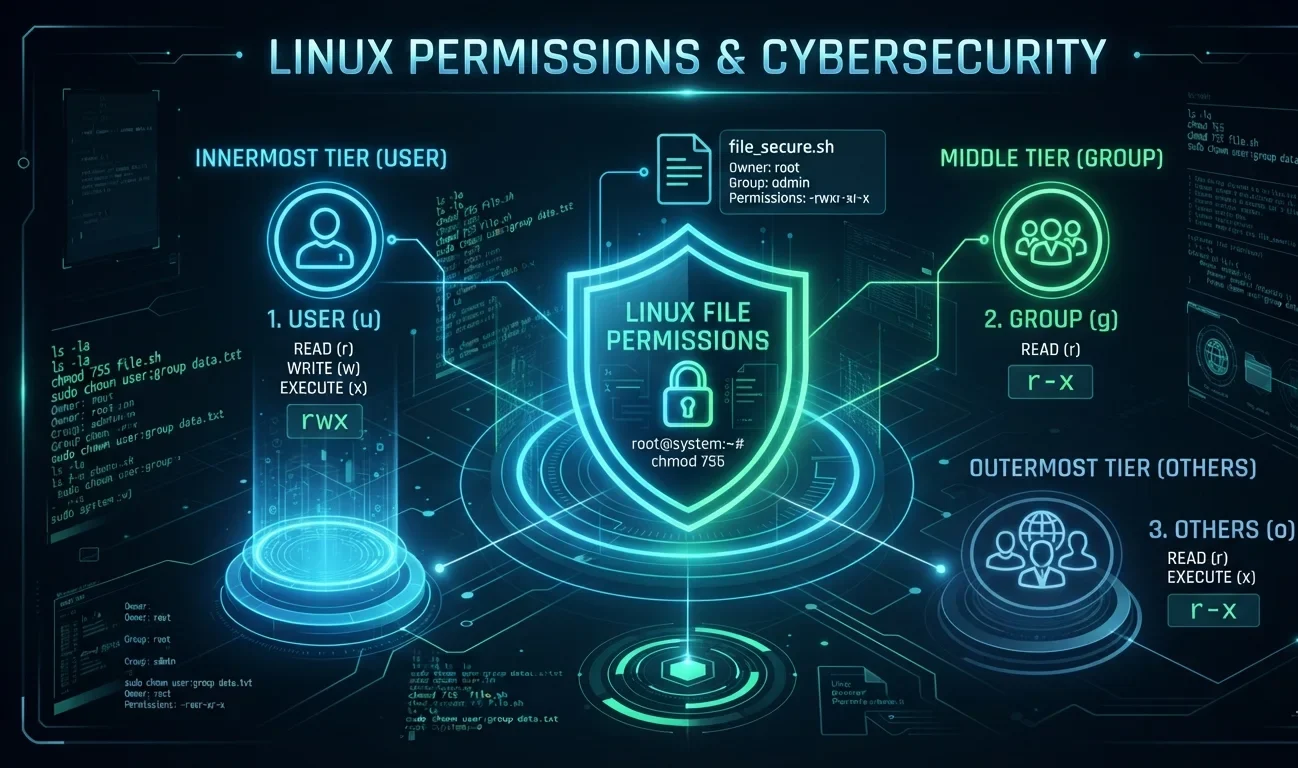
In the standard security model, every file and directory is bound to three distinct ownership tiers. When an operation is executed, the Linux kernel evaluates these tiers to grant or deny access:
- User (
u): The owner account that created or currently owns the file. - Group (
g): A designated group account containing users with common access privileges. - Other (
o): All other global users on the system.
2. Core Linux File Permissions Types
The Linux permissions system evaluates three primary action types across files and directories:
| Permission | File Privilege | Directory Privilege |
|---|---|---|
Read (r) | View file contents (e.g., cat or less). | List directory contents using ls. |
Write (w) | Edit, overwrite, or modify file contents. | Create, delete, or rename files inside the directory. |
Execute (x) | Run the file as an executable program or shell script. | Enter the folder using cd. |
3. Inspecting Linux File Permissions with ls -l
To view detailed Linux file permissions, execute the directory listing command in your terminal:
ls -lSample Directory Output:
-rwxr-xr-- 1 root root 4096 Aug 6 2026 script.shDeconstructing the Permission String:
- 1st Character: File type (
-= regular file,d= directory,l= symbolic link). - Characters 2–4: Owner privileges (
rwx= Read, Write, Execute). - Characters 5–7: Group privileges (
r-x= Read, Execute). - Characters 8–10: Other/Public privileges (
r--= Read-only).

Interactive Linux File Permissions Terminal
Test permission modifications directly in this simulated interactive console. Enter chmod 755 script.sh or ls -l to inspect dynamic responses.
4. Modifying Linux File Permissions with chmod
The chmod command alters active Linux file permissions using either octal (numeric) or symbolic representations.
A. Numeric (Octal) Mode
Numeric mode calculates permissions by combining assigned values:
- Read (
r) = 4 - Write (
w) = 2 - Execute (
x) = 1 - None (
-) = 0
| Octal Code | Symbolic | Permission Rights |
|---|---|---|
| 7 | rwx | Full Read, Write, Execute |
| 6 | rw- | Read & Write |
| 5 | r-x | Read & Execute |
| 4 | r-- | Read Only |
| 0 | --- | No access |
chmod 754 script.shB. Symbolic Notation
chmod u+x script.sh       # Add execute permission for file owner
chmod g-w document.txt    # Revoke write permission from group
chmod o=r report.pdf      # Set explicitly to read-only for others
5. Reassigning Ownership using chown
Changing ownership attributes requires superuser privileges (`sudo`). For advanced server setup, check our tutorial on essential Linux command-line tools or consult the Red Hat Enterprise Linux Security Documentation.
# Transfer owner to "john"
sudo chown john report.pdf

# Update owner and group together
sudo chown john:developers report.pdf
6. Extended Access Control Lists (ACLs) and Special Bits
When basic Linux file permissions are too restrictive for complex multi-user collaboration, standard POSIX ACLs provide targeted user assignment. Learn more about enterprise Linux security standards from the Linux Foundation Training Portal.
# Assign specific permissions to user mariah
sudo setfacl -m u:mariah:rw file.txt

# Inspect assigned ACLs
getfacl file.txt
Special Permission Flags
- SUID: Runs binaries using the owner account privileges.
- SGID: Ensures newly created sub-files inherit the parent folder’s group ID.
- Sticky Bit: Prevents non-owners from removing files in shared directories (e.g.,
/tmp).
chmod 777 on production systems, as it bypasses standard Linux file permissions security mechanisms.Frequently Asked Questions (15 FAQs)
chmod modifies system access privileges (read, write, execute), while chown changes the user and group ownership assigned to a file or directory.chmod 777 grants full Read, Write, and Execute permissions to the Owner, Group, and all Other users on the system.chmod +x script_name.sh or chmod u+x script_name.sh to grant execution privileges to the file owner.-R, for example: chmod -R 755 /path/to/directory.664 (rw-rw-r–) for regular files and 775 (rwxrwxr-x) for directories upon creation.umask (User Creation Mask) determines the default permissions automatically withheld or subtracted when new files or directories are created./tmp), even if everyone has write access to the folder.ls -l in your terminal to see a detailed listing that includes the 10-character permission string for each file and directory.getfacl filename to display the extended Access Control List associated with the file.sudo privileges) can reassign file ownership to prevent security bypasses.Conclusion: Mastering Linux File Permissions
Mastering Linux file permissions is fundamental to maintaining system stability, security, and multi-user privacy across any Linux distribution. By taking time to understand owner, group, and public access tiers alongside numeric (octal) and symbolic chmod syntax, you gain total administrative control over who can read, modify, or execute files on your infrastructure.
Always adhere to the principle of least privilege: assign only the minimum access levels required for scripts and applications to function, avoid unnecessary global permissions like chmod 777, and leverage advanced tools like ACLs or special bits when complex sharing scenarios arise.
1 thought on “Introduction to Linux File Permissions and Access Control”